You can add frequently used items to Favorites to quickly access them later, and use tags to keep everything organized. There’s no limit the number of tags you can create:
- A
financetag for your bank accounts and credit cards. - A
healthtag for your health insurance, gym memberships, and fitness apps. - Ein
Versicherungstagfür all deine Versicherungspolicen. - Anything that will help find related items when you need them.
You can use multiple tags on a single item, like health and insurance, to help narrow down your search later.
Organize items in the 1Password apps
Elemente zu Favoriten hinzufügen
To mark an item as a favorite, select the ellipsis in the item’s details and select Add to Favorites.
To view your favorite items, select Favorites in the sidebar.
Create and manage tags
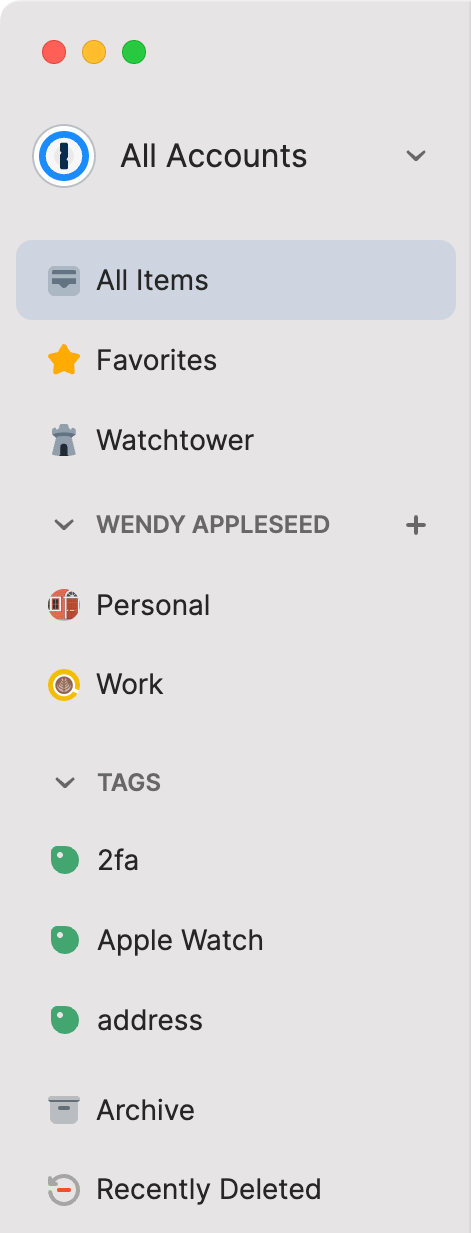
To create a tag, choose an item and select Edit. Then select Add tag, enter the name of the tag in the tag field, and press Return. To add multiple tags, enter each tag name in a new tag field. You can nest tags using a forward slash (/).
To apply a tag to additional items, drag the items to a tag in the sidebar.
To view your tagged items, choose a tag in the sidebar. You can also search 1Password for tags.
To rename a tag, right-click the tag in the sidebar and choose Rename Tag. Then enter the new name in the tag field and select Save.
To delete a tag, right-click the tag in the sidebar and choose Delete Tag.
Elemente zu Favoriten hinzufügen
To mark an item as a favorite, select it to see its details, then select  > Add to Favorites.
To view your favorite items, select Home and scroll to the Favorites section.
To change how your favorite items are sorted, select and hold Favorites on the Home screen, then choose your preferred order.
If you don't see the Favorites section, learn how to customize the Home screen to see your favorites. If you're using an iPad, you can customize the sidebar instead.
Create and manage tags
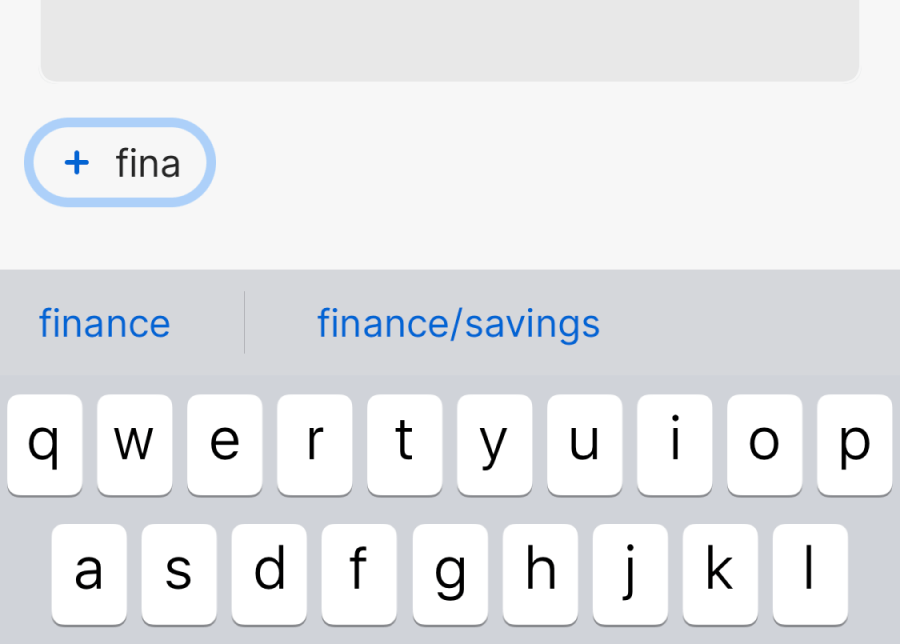
To create a tag, open an item and select Edit. Then scroll down and select Add tag. Enter the name of a tag and selct Create Tag, or choose a tag from the list above the keyboard.
You can add multiple tags or nest them using a forward slash (/). To remove a tag from an item, select the tag and select Remove tag.
When you’re finished, select Return > Save.
View tags
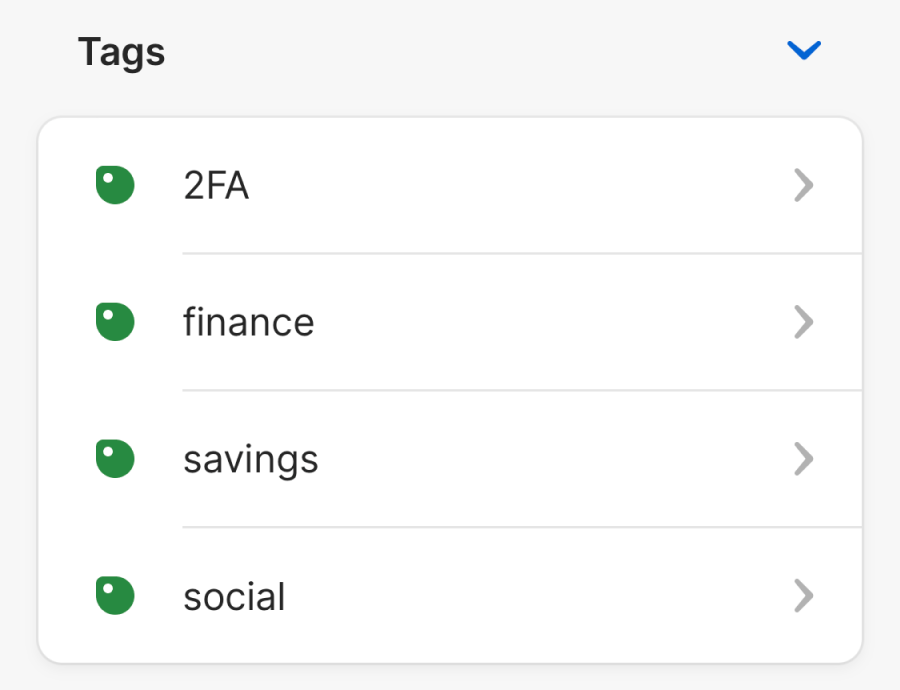
To view your tagged items, select Items, then scroll to the Tags section. If you’re using an iPad, you’ll see your tags in the sidebar.
If you don't see the Tags section, learn how to customize the items tab to see your tags. If you're using an iPad, you can customize the sidebar instead.
You can also search 1Password for tags.
Elemente zu Favoriten hinzufügen
To mark an item as a favorite, select the ellipsis in the item’s details and select Add to Favorites.
To view your favorite items, select Favorites in the sidebar.
Create and manage tags
To create a tag, choose an item and select Edit. Then select Add tag, enter the name of the tag in the tag field, and press Enter. To add multiple tags, enter each tag name in a new tag field. You can nest tags using a forward slash (/).
To apply a tag to additional items, drag the items to a tag in the sidebar.
To view your tagged items, choose a tag in the sidebar. You can also search 1Password for tags.
To rename a tag, right-click the tag in the sidebar, then select Rename Tag. Enter the new name in the tag field and select Save.
To delete a tag, right-click the tag in the sidebar and choose Delete Tag.
Elemente zu Favoriten hinzufügen
To mark an item as a favorite, select it to see its details, then select the ellipsis
Add to Favorites.
To view your favorite items, select Home and scroll to the Favorites section.
To change how your favorite items are sorted, select and hold Favorites on the Home screen, then choose your preferred order.
If you don't see the Favorites section, learn how to customize the Home screen to see your favorites. If you're using a tablet, you can customize the sidebar instead.
Create and manage tags
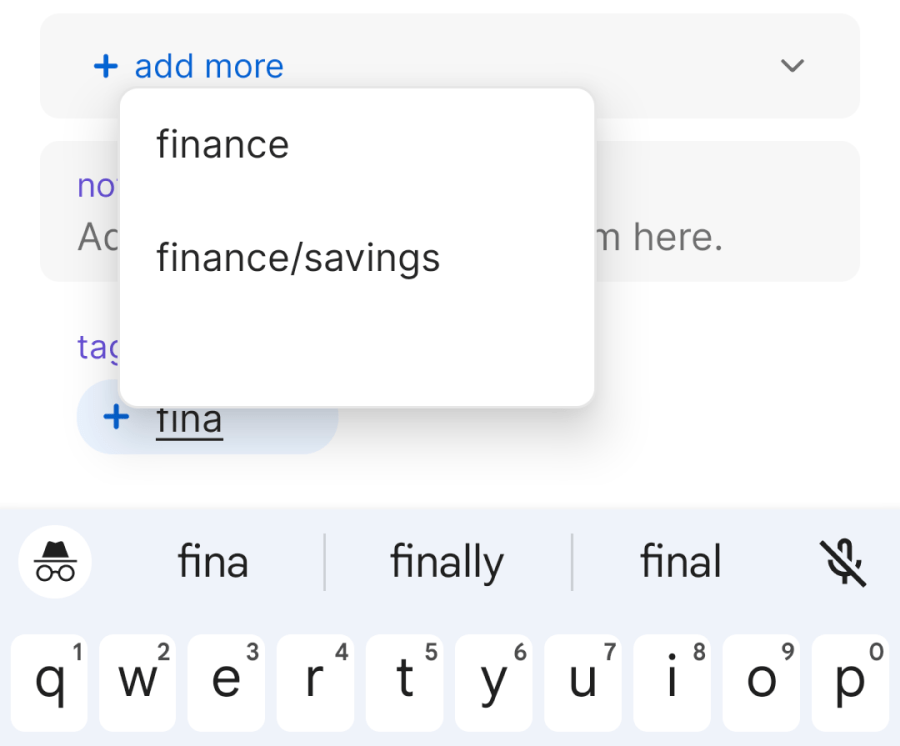
To create a tag, open an item and select Edit. Then scroll down and select Add tag. Enter the name of a tag and select Create Tag, or choose a tag from the list above the keyboard.
You can add multiple tags or nest them using a forward slash (/). To remove a tag from an item, select the tag and select Remove tag.
When you’re finished, select the checkmark , then select Save.
View tags
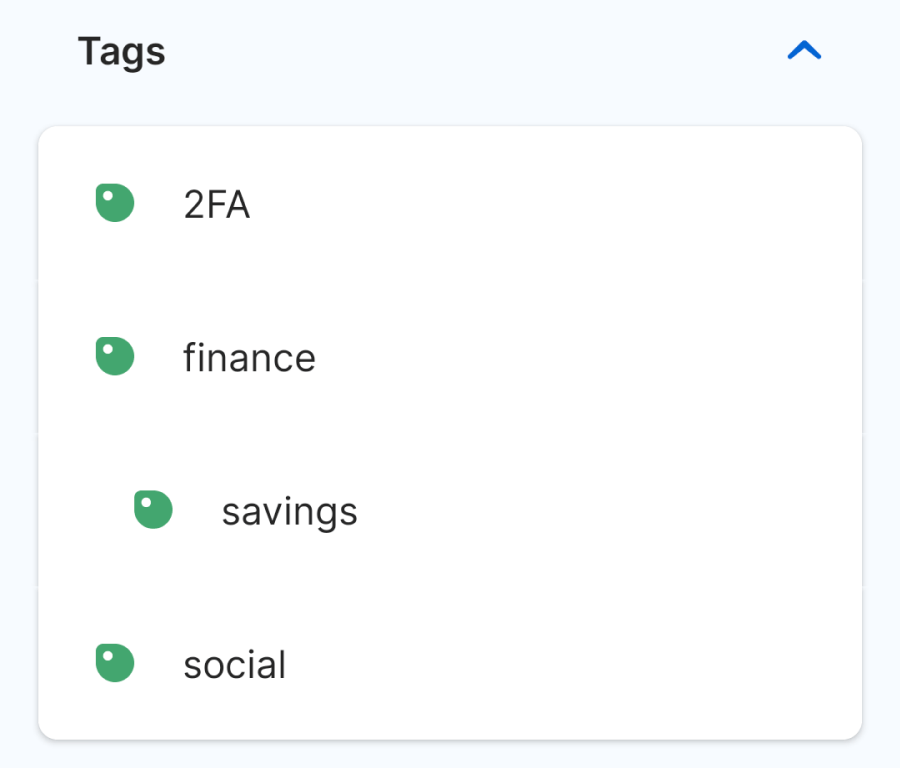
To view your tagged items, select Items, then scroll to the Tags section. If you’re using a tablet, you’ll see your tags in the sidebar.
Wenn der Abschnitt "Tags" nicht angezeigt wird, erfahre wie die Registerkarte „Elemente“ angepasst wird, um deine Tags anzuzeigen. Wenn du ein Tablet benutzt, kannst du stattdessen die Seitenleiste anpassen.
You can also search 1Password for tags.
Elemente zu Favoriten hinzufügen
To mark an item as a favorite, select the ellipsis in the item’s details and select Add to Favorites.
To view your favorite items, select Favorites in the sidebar.
Create and manage tags
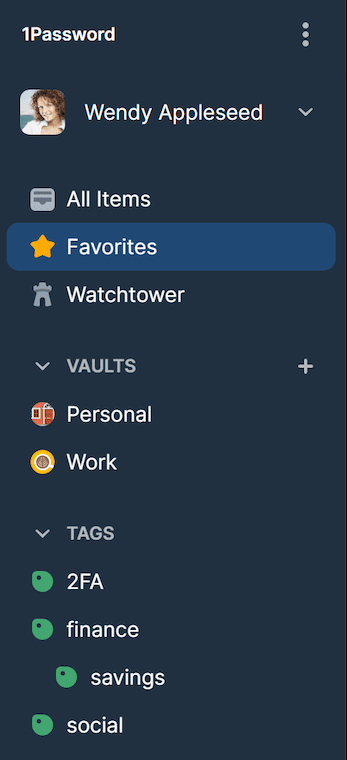
To create a tag, choose an item and select Edit. Then select Add tag, enter the name of the tag in the tag field, and press Enter. To add multiple tags, enter each tag name in a new tag field. You can nest tags using a forward slash (/).
To apply a tag to additional items, drag the items to a tag in the sidebar.
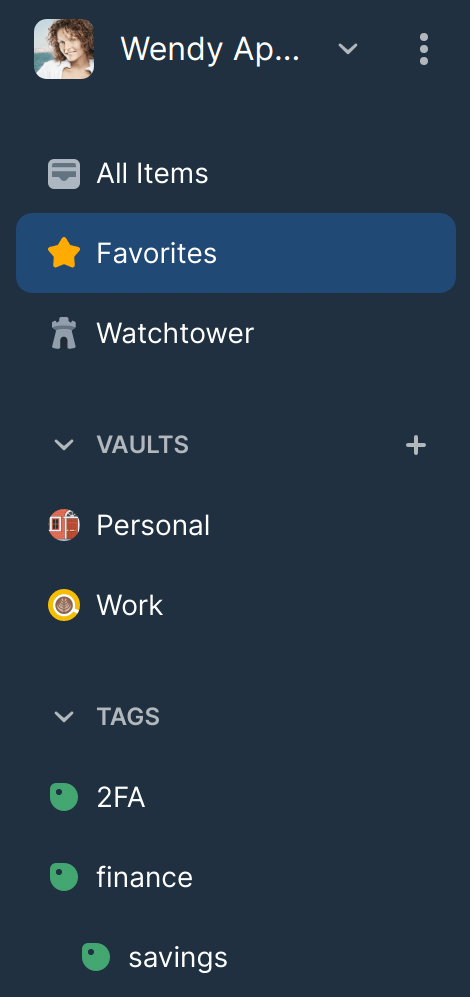
To view your tagged items, choose a tag in the sidebar. You can also search 1Password for tags.
To rename a tag, right-click the tag in the sidebar and choose Rename Tag. Then enter the new name in the tag field and select Save.
To delete a tag, right-click the tag in the sidebar and choose Delete Tag.
Organize items on 1Password.com
Elemente zu Favoriten hinzufügen
To mark an item as a favorite, select the ellipsis in the item’s details and select Add to Favorites.
To view your favorite items, select Favorites in the sidebar.
Create and manage tags
Um ein Tag zu erstellen, wähle ein Element aus und klicke auf Bearbeiten. Gib dann den Namen des Tags in das Feld für Tags ein und wähle Speichern. Du kannst mehrere Tags mit Kommas trennen.
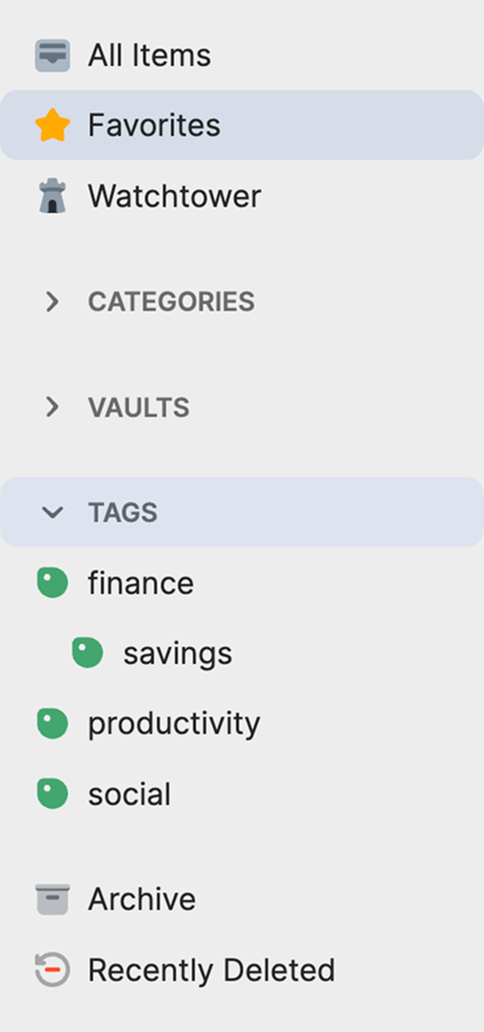
To view your tagged items, choose a tag in the sidebar.
Mehr erfahren
- Elemente verschieben und kopieren
- How to customize your 1Password items
- Suche in der 1Password-App, um das zu finden, was du benötigst
War dieser Artikel hilfreich?
Freut mich, das zu hören! Wenn du etwas hinzufügen möchtest, zögere nicht, uns zu kontaktieren.
Tut mir leid, das zu hören. Bitte kontaktiere uns, wenn du uns mehr darüber erzählen möchtest.