
Mit 1Password Business kannst du 1Password mit Okta integrieren, um viele gängige administrative Aufgaben zu automatisieren:
Bereitstellung
- Benutzer erstellen: Zugewiesene Benutzer und Gruppen werden in 1Password bereitgestellt.
Verwende Push Groups, um Gruppen aus deinem Verzeichnis mit 1Password zu synchronisieren.
- Benutzerattribute aktualisieren: Wenn du Benutzerattribute in deinem Verzeichnis änderst, werden die zugeordneten Attribute in 1Password ebenfalls geändert.
- Benutzer deaktivieren: Wenn du einen Benutzer deaktivierst oder den Zugriff des Benutzers auf 1Password in Okta sperrst, wird der Benutzer in 1Password gesperrt.
Import
- Benutzer und Gruppen importieren: Bestehende 1Password-Benutzer und -Gruppen werden importiert und können mit bestehenden Okta-Objekten verknüpft werden.
Gruppen verwalten
- Push-Gruppen: Verwende Push-Gruppen, um Gruppen aus deinem Verzeichnis mit 1Password zu synchronisieren oder bestehende 1Password-Gruppen in Okta zu verwalten.
Um Benutzer für 1Password bereitzustellen, verwende Okta-Gruppenzuweisungen.
To get started, sign in to your account on Okta.com , select Admin in the top right, and follow these steps.
Before you begin
Before you begin, review the considerations and current limitations of automated provisioning.
When you’re ready to set up hosted provisioning, you’ll need to:
- Zu der Gruppe Eigentümer oder Administratoren in deinem 1Password Business-Konto gehören.
- Die Funktion zur Verwaltung des Lebenszyklus in deinem Okta-Konto.
- Make sure all existing 1Password team member email address domains are in the allowed domains list. Public domains, such as gmail.com, aren’t currently supported.
Step 1: Turn on provisioning in 1Password
- Melde dich an, bei deinem Konto auf 1Password.com.
- Wähle in der Seitenleiste Einladungen aus.
- Select Okta in the User Provisioning section.
- Select Set up hosted provisioning.
- Save your credentials in 1Password in case you need it later, then select Next.
- Leave this page open and continue to step 2.
Step 2: Add the 1Password application to Okta
These steps were recorded in March 2026 and may have changed since. Refer to the Okta documentation for the most up-to-date steps.
To add the 1Password Enterprise Password Manager application to Okta:
- Select Applications, then select Browse App Catalog.
- Search for 1Password Enterprise Password Manager and select it, then select Add Integration.
- Choose the region for your 1Password account, then enter the beginning of your sign-in address (for example:
acme) and select Next. - From the sign on methods, select Bookmark-only > Done.
Du wirst die Details der Anwendung sehen, die du gerade erstellt hast.
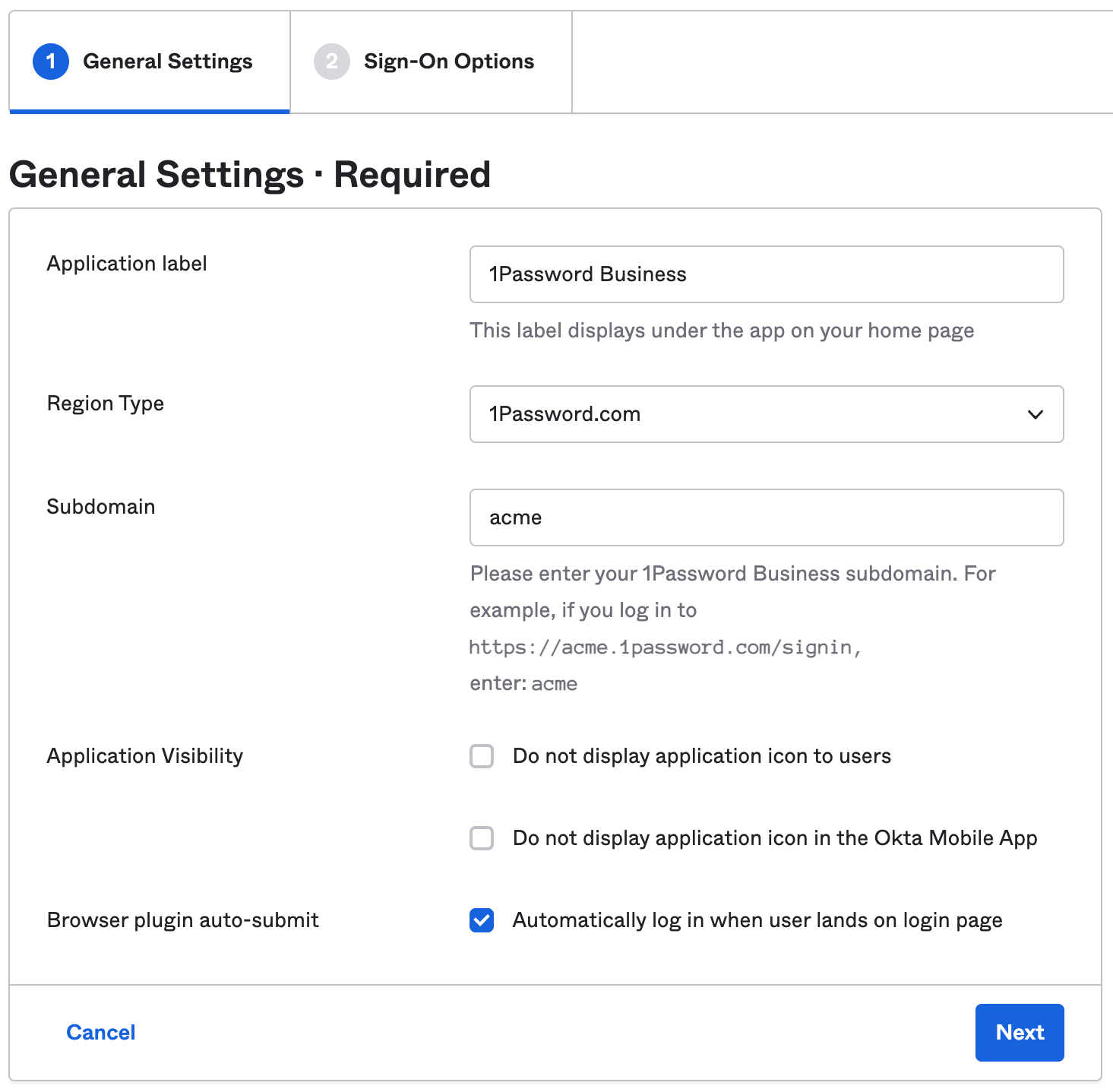
Step 3: Configure the application
On the 1Password Enterprise Password Manager application details page, select Provisioning. Then follow these steps.
3.1: Set up API integration
- Select Configure API Integration, then turn on Enable API Integration.
- Fülle die folgenden Felder aus:
- Base URL: Copy and paste your SCIM URL from the hosted provisioning setup page (not your 1Password account sign-in address). Do not include a trailing slash. For example:
https://provisioning.1password.com/scim/v2. - API Token: Copy and paste your bearer token from the hosted provisioning setup page.
- Base URL: Copy and paste your SCIM URL from the hosted provisioning setup page (not your 1Password account sign-in address). Do not include a trailing slash. For example:
- Wähle Speichern aus.
- Go back to the 1Password setup page and select Finish.
3.2: Set up provisioning to 1Password
Select Assignments and assign the users and groups you want to provision to 1Password. Then follow these steps:
- Select Provisioning.
- Select Edit and turn on these options:
- Benutzer erstellen
- Benutzerattribute aktualisieren
- Benutzer deaktivieren
- Wähle Speichern aus.
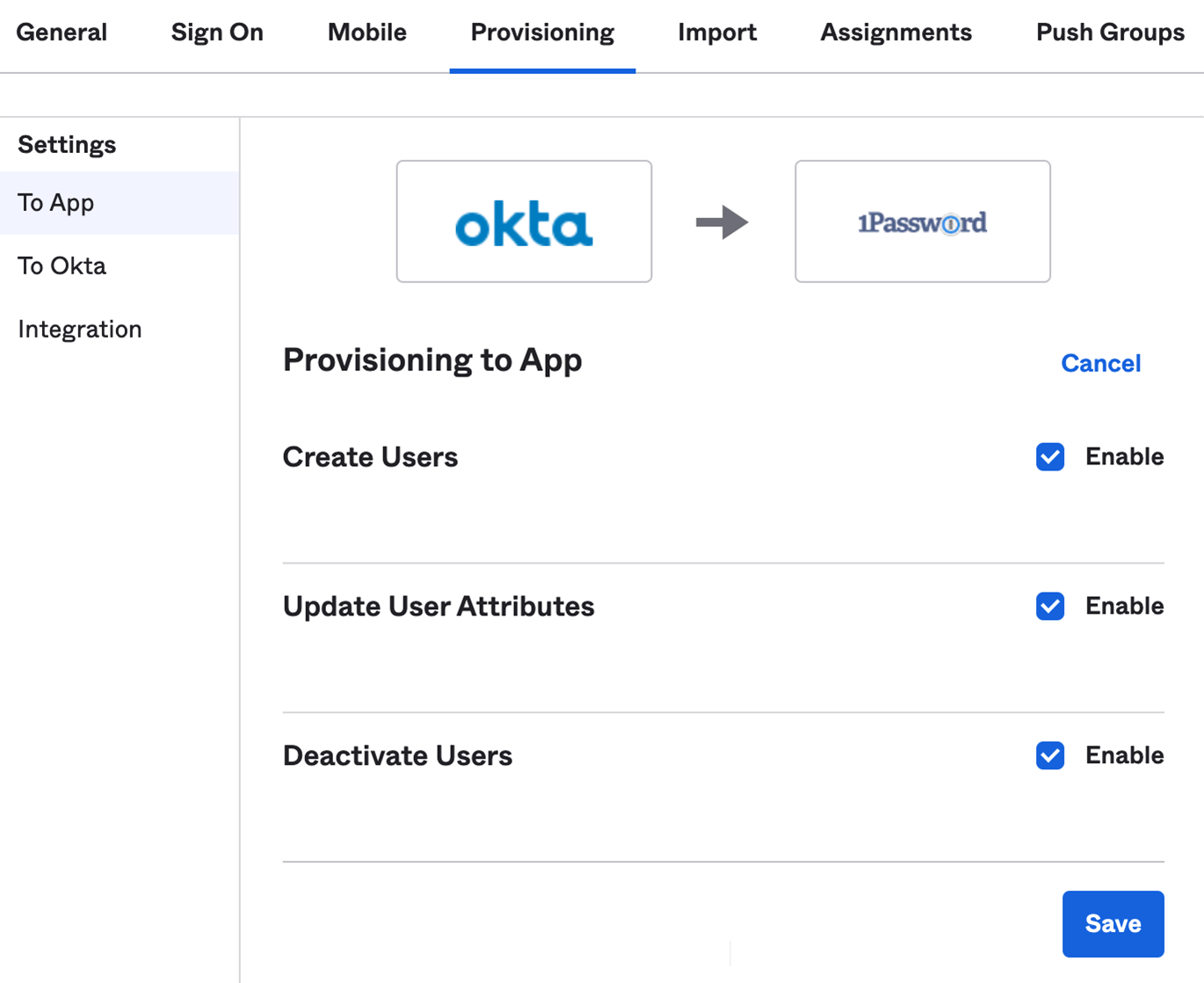
3.3: Map the displayName attribute
To make sure display names in 1Password sync correctly from Okta, you’ll need to map the displayName SCIM attribute. This step is required after the application setup is complete.
On the Provisioning tab, follow these steps:
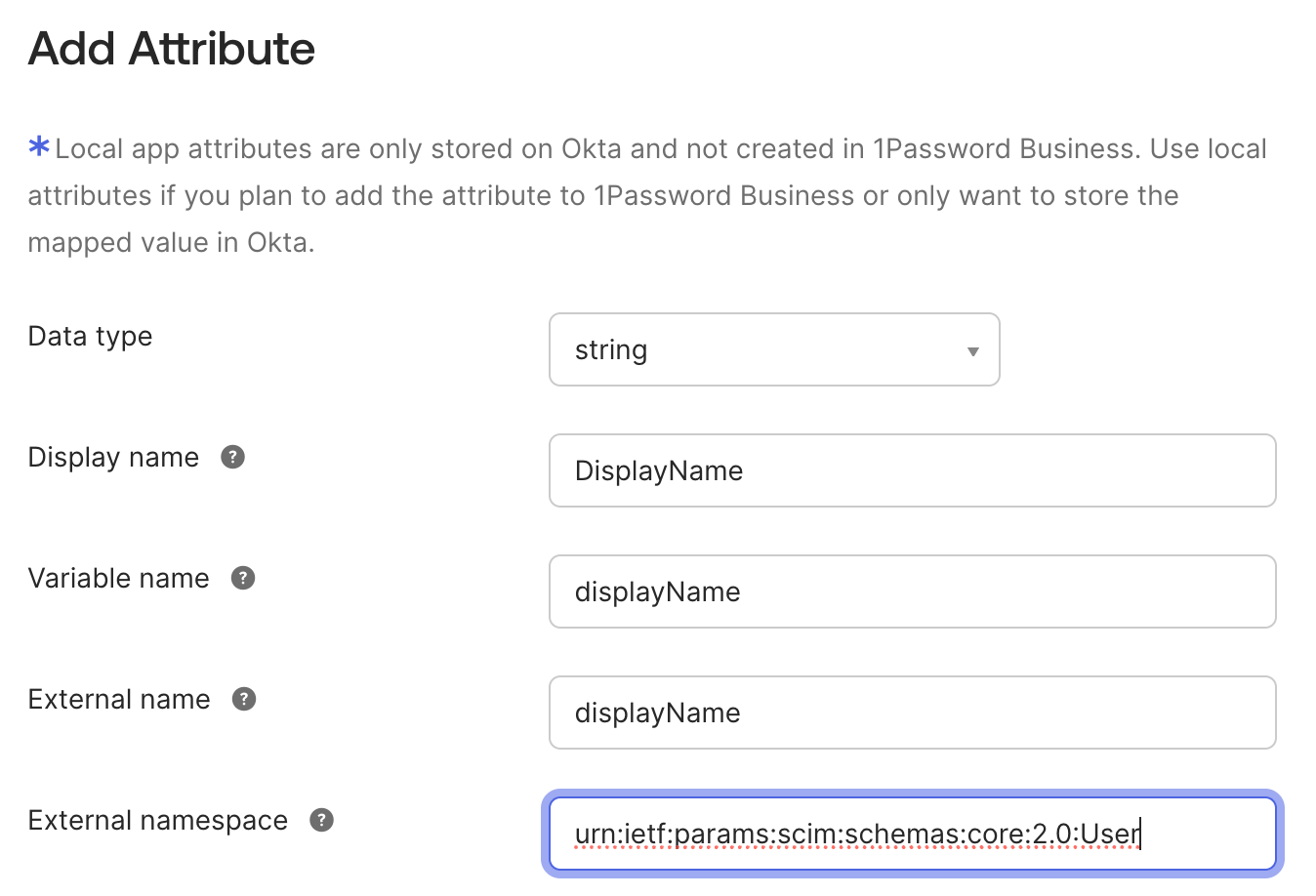
- Select Go to Profile Editor, then select Add Attribute.
- Fill in the following fields:
- Display name: Enter
DisplayName. - Variable name: Enter
displayName. - External namespace: Copy and paste the following:
urn:ietf:params:scim:schemas:core:2.0:User
- Display name: Enter
- Select Save, then select Mappings.
- Select the Okta User to 1Password … tab.
- Map the
displayNameattribute todisplayName. - Select Save Mappings > Apply updates.
Next steps
Wenn du die Bereitstellung aktivierst, werden bestehende 1Password-Nutzer mit Okta-Nutzern verknüpft, sofern ihre E-Mail-Adresse übereinstimmt. Wenn ihre E-Mail-Adresse abweicht, werden sie erneut zu 1Password eingeladen. Achte also darauf, dass alle betroffenen Teammitglieder vor dem Aktivieren der Bereitstellung ihre E-Mail-Adresse aktualisieren.
If a team member hasn’t accepted their invite after 2 days, they’ll receive a reminder email. Invites don’t expire.
Wenn du bestehende Gruppen in 1Password hast, die du mit Okta synchronisieren möchtest, füge sie den Gruppen hinzu, die durch Bereitstellung verwaltet werden:
- Melde dich an, bei deinem Konto auf 1Password.com.
- Wähle in der Seitenleiste Integrationen und wähle Automatisierte Benutzerbereitstellung aus.
- Wähle im Abschnitt „Verwaltete Gruppen“ die Option Verwalten und wähle dann die Gruppen aus, die synchronisiert werden sollen.
If you've previously used the SCIM bridge, make sure to select any groups that were already synced with Okta. This will prevent problems syncing with your identity provider, including duplicate groups.
Tipp
Learn about best practices for using automated provisioning.
Verwalte deine Einstellungen
To turn off synchronization, select Active > Deactivate.
To change the region to match your 1Password account, select General, then select your account’s region from the Region Type menu.
Learn more in the Okta Help Center.
Unterstützung erhalten
Falls Benutzer und Gruppen nicht bereitgestellt werden, stelle sicher, dass die Bereitstellung in deinem 1Password-Konto aktiviert ist:
- Melde dich an, bei deinem Konto auf 1Password.com.
- Wähle in der Seitenleiste Einladungen aus.
- Select Hosted Provisioning.
- Make sure Sync 1Password with my identity provider is turned on.
Anhang: Attributzuordnungen
The following are the default attribute mappings for the 1Password Enterprise Password Manager application in Okta:
| 1Password SCIM attribute | Okta-Attribut | Description |
|---|---|---|
| userName | Okta-Benutzername | Der Benutzername und die E-Mail-Adresse des Teammitglieds. |
| givenName | firstName | Dein Vorname. |
| Familienname | lastName | Ihr Nachname. |
Erfahre, wie du Okta-Attribute im Profil-Editor mit App-Attributen verknüpfen kannst.
War dieser Artikel hilfreich?
Freut mich, das zu hören! Wenn du etwas hinzufügen möchtest, zögere nicht, uns zu kontaktieren.
Tut mir leid, das zu hören. Bitte kontaktiere uns, wenn du uns mehr darüber erzählen möchtest.